
Locking
To lock the charger, follow the steps below:
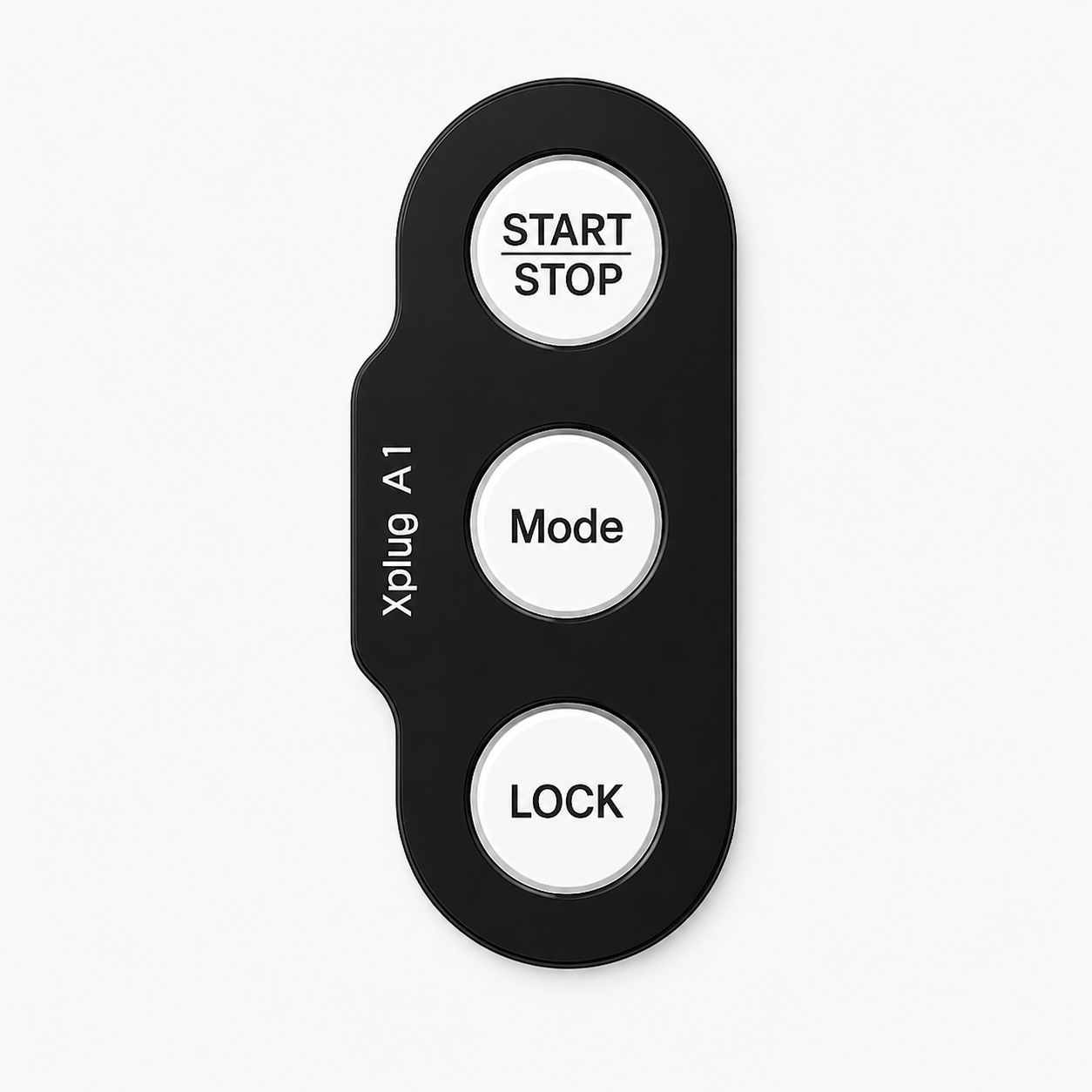
Default Pattern
1
Make sure the charger is not in use.
2
Press the Lock button. All three buttons will turn Red, Green and Blue.
3



Enter your pattern by pressing the colours from your lock pattern in sequence. Each button will flash to confirm input.
4
The charger buttons will briefly flash white to confirm your pattern has been accepted. The lock light changes from green to red.
Locking prevents unauthorised use of the charger. When enabled, charging can only be controlled via the mobile app. It is recommended to activate the lock if the charger is installed in a shared or publicly accessible location.